
When to use this guide
Use this guide when:
-
An I/O card is suspected to be faulty
-
Multiple signals connected to the same I/O card behave abnormally
-
Status LEDs or PLC diagnostics indicate an I/O card issue
-
A known-good replacement I/O card is available
Safety and prerequisites
⚠️ Important
-
The cabinet must be fully powered down
-
Only qualified personnel with electrical competence may perform this task
-
Follow site-specific lock-out / tag-out (LOTO) procedures
Before starting:
-
Identify the exact I/O card type (DI, DO, AI, AO)
-
Verify that the replacement card is identical or approved equivalent
-
Have electrical documentation available
Step-by-step procedure
1. Power down the cabinet
-
Switch off the main power supply to the control cabinet
-
Verify that the cabinet is fully de-energized
2. Identify the correct I/O card
-
Locate the faulty I/O card in the cabinet
-
Verify:
-
Card type
-
Position
-
Channel assignment
-
-
Cross-check with the electrical documentation
3. Release the DIN rail locking mechanism
-
Locate the DIN rail locking mechanism holding the I/O cards in place
-
Carefully release the locking mechanism to allow the cards to move
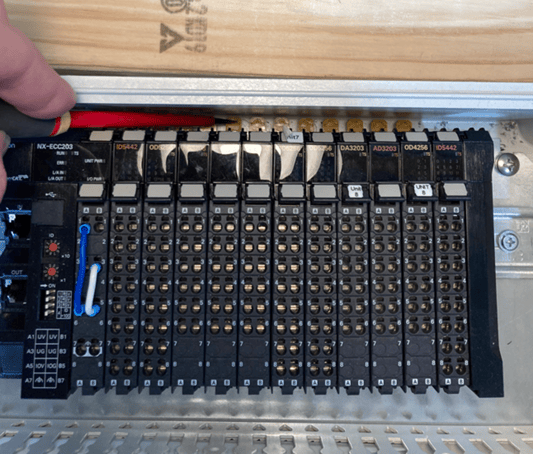
4. Create space by lifting adjacent cards
-
Gently tilt or lift the neighboring I/O cards to the side
-
This creates enough clearance to remove the faulty card
-
Avoid unnecessary removal of wiring or terminals
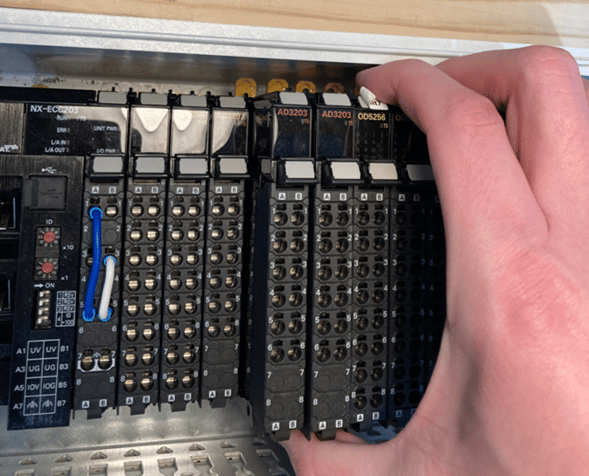
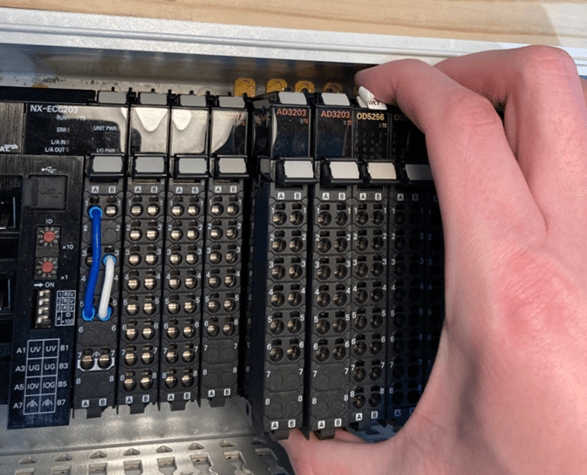
5. Remove the faulty I/O card
-
Carefully slide the faulty I/O card out of its position
-
If the card cannot be removed due to limited access:
-
Remove the terminal wiring carefully
-
Use electrical documentation to ensure correct reconnection
-
Mark or photograph wiring positions if required
-
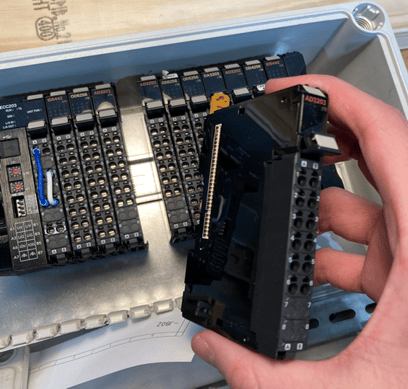
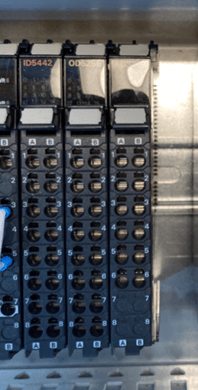
6. Install the replacement I/O card
Gently slide the new/replacement card into place and fastened the locking mechanism again:
-
Insert the new I/O card into the same position
-
Ensure the card is:
-
Properly aligned
-
Fully seated in the backplane
-
-
Re-engage the DIN rail locking mechanism
-
Return adjacent cards to their original position
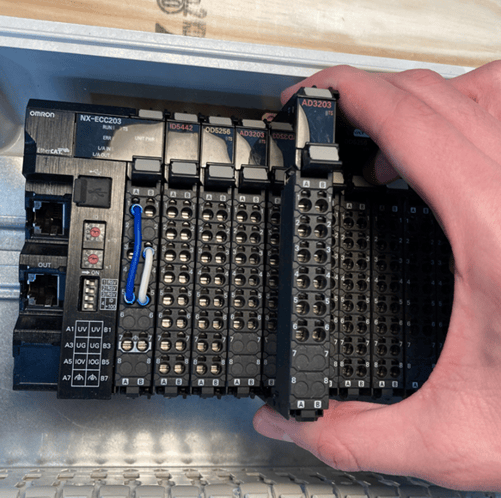
Important note – terminals vs I/O card faults
Omron I/O systems allow terminal blocks to be removed independently of the I/O card.
This is useful for troubleshooting:
-
A faulty channel may be caused by:
-
The I/O card itself
-
A damaged or “toasted” terminal channel
-
-
Terminals can be temporarily moved to another I/O card to verify whether the fault follows the terminal or remains with the card
👉 Do not assume the I/O card is faulty before considering the terminal channels.
Sidenote: Undo the terminals in the card that needs to be replaced/changed:
When removing the card that needs to be replaced/changed you can let the wires stay put in the terminals by removing the terminals via. the lever. This is especially handy for the cards (on right-hand side of the defective one) when these are to be dismounted before exchanging the defective card.
Keep in mind this can be used for trouble shooting purpose, although the Card itself can be okay, while one or multiple terminal channels can be toasted.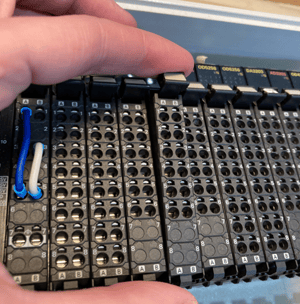
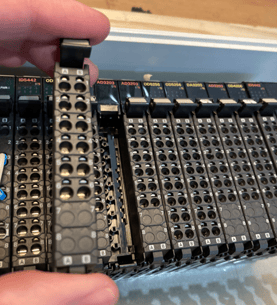
After replacement
-
Restore power to the cabinet
-
Observe:
-
Status LEDs on the I/O card
-
PLC diagnostics
-
-
Press Reset on the HMI
-
Verify:
-
Alarms are cleared
-
Signals respond correctly
-
Common mistakes to avoid
-
Replacing the wrong I/O card type
-
Forgetting to fully power down the cabinet
-
Not fully seating the I/O card
-
Overlooking terminal-related faults
- Not remounting replacement card and downstream cards correctly.
Intercard terminals on the side of cards needs to "click into each other" and Cards needs to be mounted correctly onto DIN.
When to contact LiqTech Service
-
If alarms persist after I/O card replacement
-
If multiple I/O cards show abnormal behavior
-
If PLC diagnostics indicate deeper hardware issues